
Enable Auto-Execution
Connect your exchange and let the agents' trades run on your own account automatically.
Auto-execution mirrors an agent's trades onto your own exchange account. When an agent opens or closes a position on an instrument you follow, the same trade is placed for you — no manual order entry.
Your keys, your funds — always
You connect a trade + read-only API key. Nestovi uses it solely to place the trades you opt into and to read your balances. We never withdraw your funds. Read more on the Safety & security page.
Before you begin
- A funded account on a supported exchange (e.g. Binance or Bybit).
- The ability to create an API key with trade and read permissions (no withdrawal permission needed).
Connect an exchange
Open Exchanges. From the main menu, tap Exchanges, then My Connections, then Add Connection.
Pick your exchange. Choose your exchange from the list of supported venues.
Paste your API key, then your secret. Send them when prompted. For your safety, each message is deleted immediately after it's read, and secrets are never logged.
Whitelist our IP. The bot shows the outbound IP address to add to your exchange API key's allow-list. This ensures only Nestovi can use the key.
Test the connection. Tap Test Connection. Nestovi verifies the credentials, checks access and the IP whitelist, and confirms your account — once it passes, the connection is marked verified 🟢.
Here's what a correctly configured exchange API key looks like — Reading and Spot Trading enabled, Withdrawals left off, and access restricted to Nestovi's IPs:
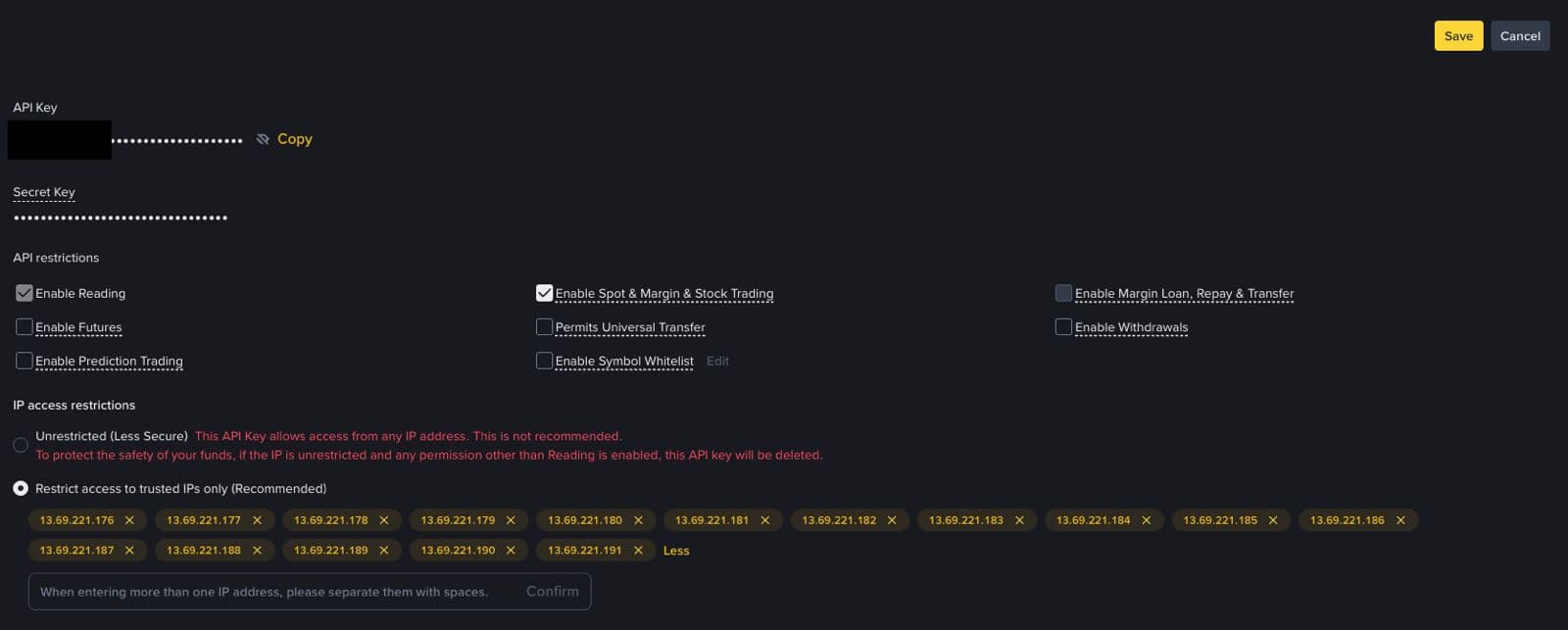
The two settings that matter most
Never enable Withdrawals, and always restrict the key to Nestovi's IPs. Together they mean the key can place the trades you opt into and nothing else — even if it were ever exposed.
Turn it on for an instrument
Open the instrument. Go to Instruments and open one you follow.
Select your exchange. Tap Auto-Execute → Select Exchange and pick the verified connection you just added.
Toggle execution on. Flip execution to On. From now on, when an agent opens or closes on this instrument, the trade is placed on your account.
After each fill, you'll get a confirmation, for example:
🤖 Your order filled at $48,012 for 0.05 of the base asset, on Jun 28, 14:32.
Good to know
- Spot only. Auto-execution supports spot trading (no futures).
- Market orders. Entries and exits are placed as market orders.
- No manual sizing. Position size is derived from your balance and the trade's allocation.
- You stay in charge. Toggle execution off any time, or remove the connection entirely. Before removing a key, the bot warns you about any open positions that would be left unmanaged.